 PenPal Editorial Team
Short answer: Connecting a GLP-1 tracker to Apple Health lets it read data your iPhone already has, like steps or weight, and write back entries you log in the tracker. PenPal reads steps, workouts, active energy, weight and water, and writes workouts, weight and water. Doses, meals and side effects stay in PenPal.
What does connecting a tracker to Apple Health actually do?
It opens a two-way door you control. Apple Health is a shared store on your iPhone, and an app can only read from it or write to it after you allow each kind of data. Apple’s privacy page says apps have to ask before they can read from or write to Health.
For a GLP-1 log, that mostly saves typing. Steps from your phone or watch, a weight from a smart scale or a workout from another app can appear in your tracker on their own. Going the other way, a weight or a glass of water you log in the tracker can show up in the Health app too, next to everything else. If you’re still deciding what a tracker should record at all, start with our GLP-1 medication tracker guide.
Which data does PenPal read from and write to Apple Health?
PenPal reads five kinds of activity and body data and writes back three. Everything GLP-1 specific, such as doses, injection sites, meals, protein, fiber and side effects, stays in PenPal and isn’t written to Apple Health.
| Data | Reads from Apple Health | Writes to Apple Health | Notes |
|---|---|---|---|
| Steps | Yes | No | Shown on your activity card. Walking distance and flights climbed are read only to show on the steps screen. |
| Workouts | Yes | Yes | Writes workouts you add in PenPal. Workouts from Apple Health are read-only in PenPal; edit them where they came from. |
| Active energy | Yes | Yes | Written together with workouts you add in PenPal. |
| Weight | Yes | Yes | Writes weights you log in PenPal. |
| Water | Yes | Yes | Writes water you log in PenPal. |
| Doses and medications | No | No | Your dose log stays in PenPal. |
| Meals, protein, fiber, calories | No | No | Meal estimates stay in PenPal. |
| Side effects | No | No | Body Check-Ins stay in PenPal. |
Writing back only covers entries you create or change after you connect. PenPal doesn’t bulk-export older entries into Apple Health.
How does the Apple Health permission flow work?
Nothing is shared until you say so. When you connect, iOS shows Apple’s own permission sheet, listing each data type with separate switches for reading and writing. You can allow some and leave others off.
- Start the connection. PenPal offers it during setup. You can also turn on Apple Health later in PenPal’s Settings, or choose Sync with Apple Health from the menu on the activity card.
- Choose in Apple’s sheet. Turn on the types you want PenPal to read, and the ones you’re happy for it to write.
- Check the result. Your steps, weight and water cards fill in from Apple Health. Connecting from Settings also shows a short “Apple Health connected” note.
When you first connect, PenPal brings in recent history rather than everything: about the last 90 days of steps, active energy and water, the last 12 months of workouts, and up to 2 years of weight. After that, new data keeps flowing in as it arrives.
One small rule worth knowing: data that arrives from Apple Health on its own, like steps, doesn’t count toward your PenPal streak. Logging something yourself does.
Where does Apple Health data go once a tracker reads it?
In PenPal’s case, it stays on your iPhone. Apple Health imports and PenPal’s copies of them aren’t uploaded to PenPal’s servers.
The entries you log in PenPal itself are a different matter. Your doses, meals, side effects and manual workouts sync to your PenPal account like any other log, so they’re there if you switch phones. When you make a PDF report, it can include activity, water and weight, and its footer notes that those may include data from Apple Health. You decide whether to share that report, and with whom. Our guide on making a progress report for your doctor covers what to put in it.
Other apps handle this differently, so check each one. Apple requires every app that uses Health data to have a privacy policy that describes how it uses that data. Read it before you tap Allow.
How do you change or turn off Apple Health access later?
Health permissions are per app and per data type, and you can change them at any time. There are two switches to know about: Apple’s permissions, and the tracker’s own sync setting.
- In the Health app: Apple’s support page says to open Health, tap your profile, and under Privacy tap Apps. Pick the app and turn categories on or off.
- In Settings: Apple’s Health privacy page says you can also manage this under Settings > Apps > Health. Menu names can shift between iOS versions.
- In PenPal: turn off Apple Health in Settings. PenPal stops syncing and removes its own copies of your Apple Health data from that device. Your data in Apple Health stays as it is, including entries PenPal wrote there earlier.
Turning off sync doesn’t undo achievements you already earned. It only clears imported copies and unfinished progress that depended on them.
Why might your numbers look different in Apple Health and your tracker?
Usually because more than one source records the same thing. Your iPhone and Apple Watch both count steps, a smart scale and a tracker can both log weight, and two apps can both log water. Apple Health decides which source wins when they overlap.
Apple’s support page explains the default order: data you enter by hand in Health comes first, then data from your iPhone, iPad and Apple Watch, then data from apps and Bluetooth devices. The source at the top of the list takes priority. New apps and devices are added at the top automatically, so a fresh connection can change which numbers you see.
You can change the order yourself. In the Health app, open a category such as Steps, scroll to Data Sources & Access, tap Edit, and drag sources up or down. Turning off a source there stops it contributing to that category.
A few habits keep things tidy:
- Log each thing in one place. If you log water in PenPal, skip logging the same glass in another app.
- Weigh in one way. If a smart scale already writes your weight to Health, let PenPal read it instead of typing it again.
- Give it a moment. New data from a watch or scale can take a little while to reach Health, and then your tracker.
What should you check before connecting any tracker to Apple Health?
A quick check up front saves duplicate numbers and surprises later. Run through this list with any app, not only PenPal:
- Which types does it ask for? Only allow the ones that match what you’ll actually use.
- Read, write or both? Reading fills in your tracker. Writing adds entries to Health that other apps may then see.
- Who else writes the same data? If two apps both log water, pick one place to log it, so a glass doesn’t count twice.
- Where does imported data go? On the phone only, or to the company’s servers? The privacy policy should say.
- How do you leave? Find the off switch and what it deletes before you need it.
The FTC also suggests checking what each app can reach in your phone’s privacy settings and turning off permissions an app doesn’t need.
For a wider list of questions to ask a GLP-1 app, see our guide on how GLP-1 tracking apps work.
How does PenPal use Apple Health?
PenPal uses Apple Health to fill in the parts of your day your phone already measured, so your log takes fewer taps. It’s optional, off until you turn it on, and your Apple Health data is never sold or used for ads.
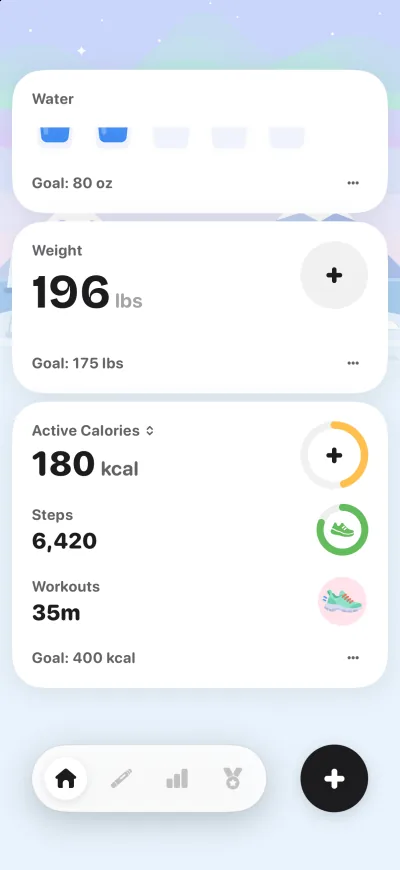
- Activity: steps, workouts and active energy come in from your iPhone or Apple Watch.
- Weight and water: read from Apple Health and written back when you log them in PenPal.
- Everything GLP-1: doses, sites, meals with protein and fiber, and side effects stay in PenPal, on the same timeline.
Read more on the protein and fiber tracker page, which covers water and Apple Health, or browse the PenPal FAQ.
Sources
- Apple Support: Manage Health data on your iPhone, iPad, or Apple Watch (checked November 7, 2026)
- Apple: Health App & Privacy (checked November 7, 2026)
- FTC: How Websites and Apps Collect and Use Your Information (checked November 7, 2026)
This guide describes how PenPal works with Apple Health as of the date above and doesn’t replace individual medical advice. Apple’s menu names can change between iOS versions.